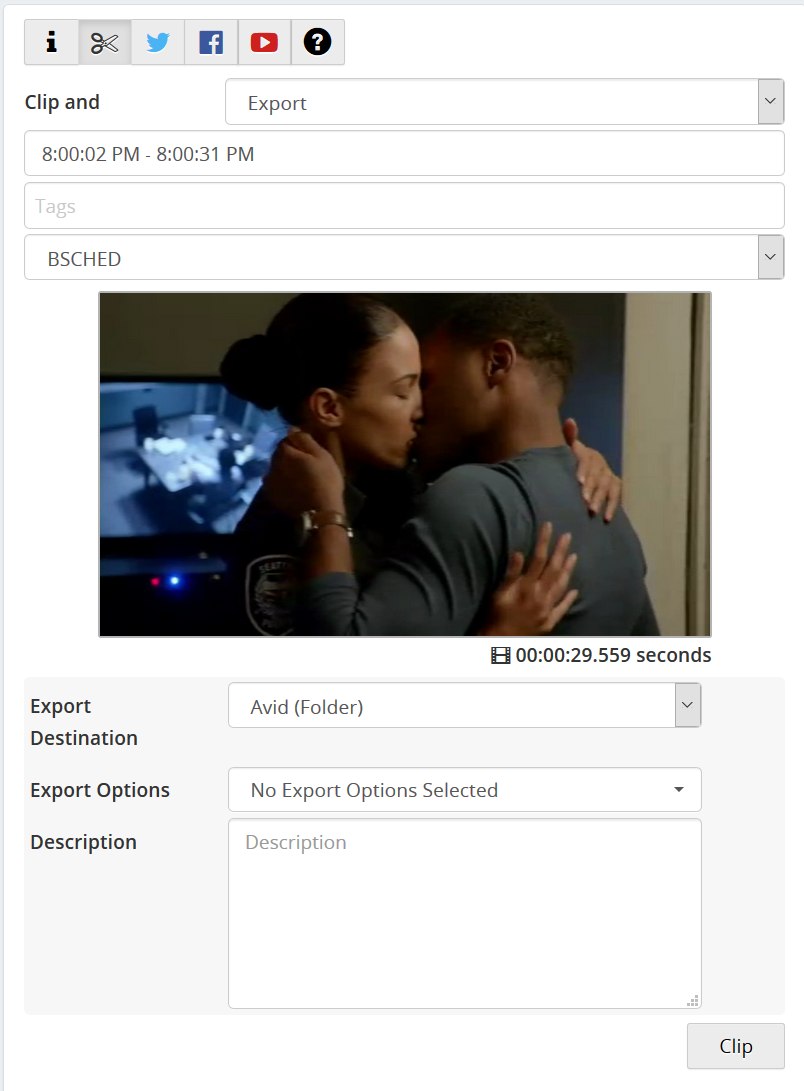
If you select Export, you will see options for exporting the clip:
Enter a Clip Titleand anyTagsyou wish to add.
Select aFolderfor the clip.
Select an Export Destination. See Folders for more information.
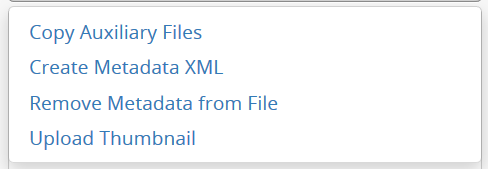
Select Export Options, if desired. See below.
Select a Description for the exported file, if desired. See below.
ClickClipto finish.
Export Options (select any number, or none): Copy Auxiliary Files: SRT files containing closed-captioning information will be copied along with the video files, along with some other files such as SmartChapter XML files. Create Metadata XML: An XML file containing library information (title, channel, description, etc.) for the item will be copied along with the video file. Remove Metadata from File: All Library metadata will be stripped from the file. This is useful for compatibility with certain third-party video editing programs. Upload Thumbnail: Includes a JPEG snapshot of the first frame of the clip
The Description Box is pre-populated with description metadata from the Program Guide for the original recording. You can edit this information to add a custom description to the metadata of the clip. If the Create Metadata XML option is used, this information will be included.