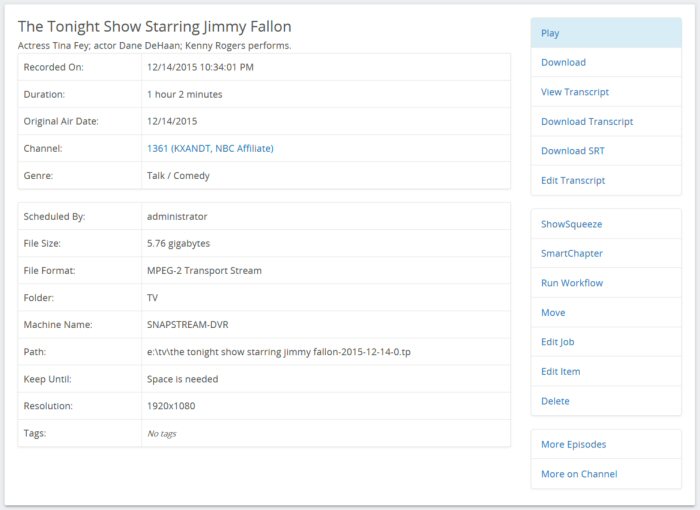
The Details window gives more information about a recording.
This page includes the following information:
•
Title of the recording
•
Description of the recording from the SnapStream Program Guide
•
Date and Time at which the recording was made
•
Recording Duration
•
Channel from which the recording was captured
•
Genre from the Program Guide
•
Scheduled By- This field gives the name of the user that scheduled the recording job that created this recording
•
File Size of the recording on disk
•
File Format
•
Video Folder in which the recording is saved
•
Machine Name- In a clustered environment, this field indicates the physical node on which the recording is stored
•
Path of the recording on disk
•
Keep Until either "Space is needed" (unlocked) or "I delete" (locked)
•
Resolution of the video
•
Any Tags that have been entered by users will be stored here
The following options are available:
•
Play- Plays the recording in the web player.
•
Download- Saves the recording to your local computer.
•
View Transcript- Displays the transcript in the web browser.
•
Download Transcript- Saves the closed-captioning transcript to your local computer as a text file.
•
Download SRT- Saves the closed-captioning information, including timestamps, as a text file with the extension .SRT.
•
Share Clip (Clips only): Allows the user to send an email containing the clip. Enterprise TV will automatically ShowSqueeze the clip to a size suitable for e-mail. See the Email Clip page for more information.
•
Upload to YouTube (clips only): Uploads a copy of the recording to YouTube under your account. See Upload to Youtube for more inofrmation.
•
ShowSqueeze: Submits the recording for transcoding. See the ShowSqueeze section of this document for more information on this option.
•
SmartChapter: Submits the recording for SmartChapter generation. See the SmartChapter section of this document for more information on this option.
•
Run Workflow: Executes the Workflow of your choice on the checked recordings. See Workflows for more information.
•
Move- Moves the recording to a video folder of your choice. Note: Enterprise TV cannot move recordings to a location that has not been added as a video folder.
•
Edit- Change the metadata of the recording, including many of the fields above. See Edit Recording for more information.
•
Delete
•
More Episodes: View a list of recordings from the same series as this one
•
Add To My Clips (Clips only): Adds the clip to the My Clips list. If the clip is already in My Clips, this option will be Remove From My Clips.
•
More on Channel: View a list of recordings from the same channel as this one